

Search and filing
Search and filing
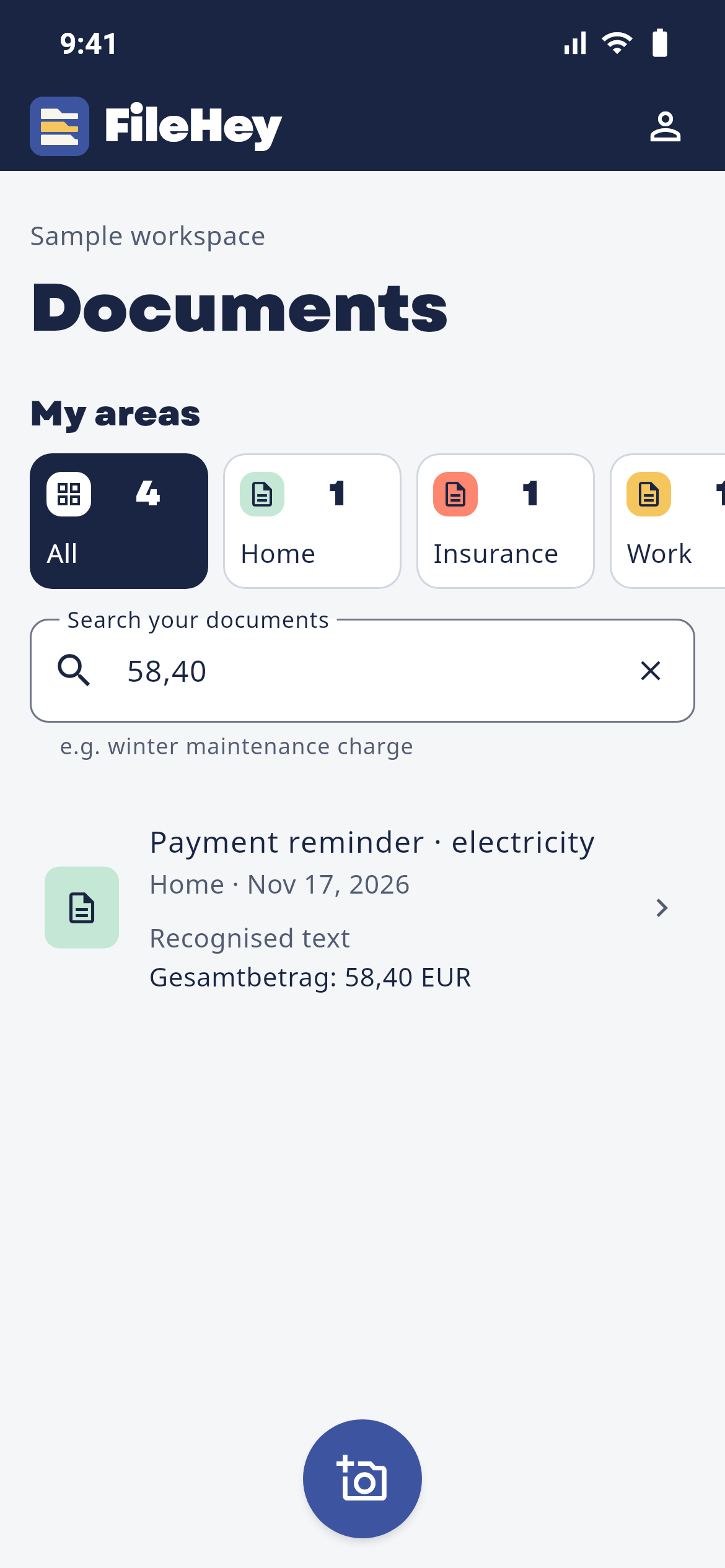
Instead of flicking through a folder, you type in a word. FileHey shows you the letter and the place where it appears.
-
Search in the text
The search goes through the recognised text of all letters, through the title and the file name. You see the matching passage with the page number.
-
Categories
Every document has a category, for example Home, Money or Official letters. You filter the list by it.
-
Your own folders
Create folders and sort letters into them. If you wish, new documents of a category end up in the folder automatically.
-
Without AI
Searching and filing work entirely without AI as well.
How you search
In the “Documents” list, tap the field Search your documents. For example “winter maintenance charge” (Nachzahlung für den Winterdienst), an invoice number, an amount such as 58,40 or a file reference number (Aktenzeichen). Upper and lower case do not matter, and you also find ä, ö and ü with ae, oe and ue.
For every result, FileHey shows where it comes from: from the recognised text with the page, from the document title or from the file name. The excerpt with your search word is shown too. If you tap the result, the document opens at the matching page.
Categories and folders
When you add a document, FileHey suggests a title and a category. You can change both under More and Edit document. The categories are Home, Money, Insurance, Health, Work, Official letters and Other. With Filter by category you show only one of them.
With My folders you create your own folders. Under Automatic filing you choose a category. New documents of this category then end up in the folder. You move a single document with Move to folder. If you delete a folder, the documents are kept.
Limits
- The search works on words. It does not answer questions such as “How much do I have to pay?”. For that there is the explanation.
- The search is only as good as the text recognition. More on this under Scanning.
- The search runs over your stock of documents. How many you may store is stated under the plan.
Frequently asked questions
Does the search also find typing mistakes?
You should not rely on that. The search compares words, word beginnings and word endings. It knows a few fixed word groups, for example Winterdienst and Räumdienst (winter maintenance and snow clearing). It has no general understanding of language. Try another word from the letter.
Is a letter found whose text was recognised badly?
Only if the word is correct in the recognised text. The search does not find a word that was read wrongly. In the document you see the recognised text and can compare it with the original.
What does “This search is too broad” mean?
The search request was too demanding for the service. Search more precisely, for example with an additional, rare word from the letter.
How many documents and folders can I create?
The number of documents depends on the plan (see Prices). The number of folders is also limited. If you reach the limit, the app tells you.


