

Step by step
- File the letter or open it in the “Documents” list.
- If FileHey has found a deadline, it is shown as a suggestion: “Deadline found in the letter”. After filing you see it on the card, later in the Deadlines section of the letter.
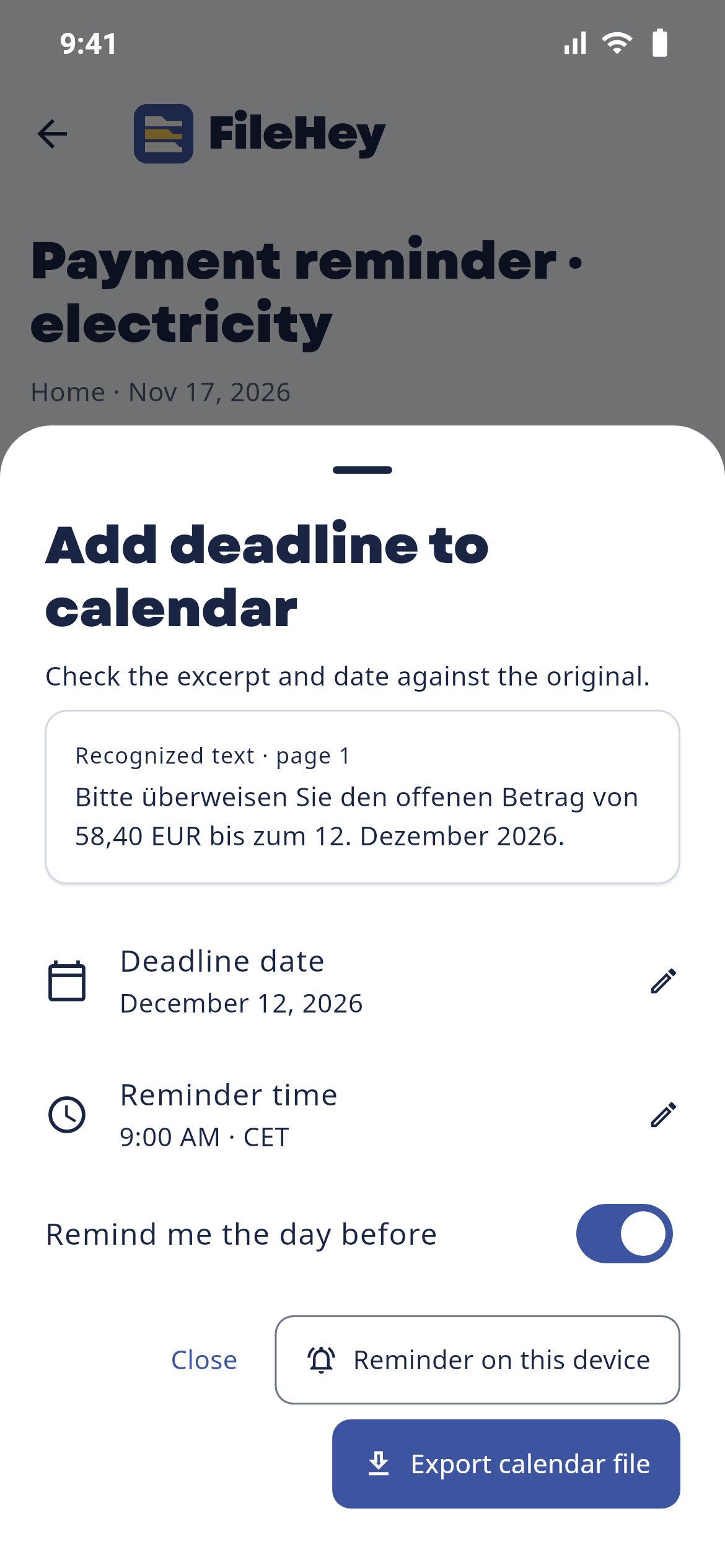
- Read the quote and compare it with the original. If you tap Change, the sheet says: “Check the excerpt and date against the original.” There you can change the Deadline date and the Note.
- Tap Save. The app says, for example: “Saved. We will remind you on December 13 and on December 15.”
- The first time, your device asks whether FileHey may send notifications. Allow it.
With Not now you put the suggestion off, and it stays with the letter. With Doesn’t fit you hide it.
If the letter only gives a period, the app shows “You choose the date.” Then Save opens the sheet. Choose the Deadline date and tap Save.
Adding a deadline yourself
If the app finds no deadline, tap Add deadline in the Deadlines section. Choose the Deadline date, write a Note, for example “Pay”, and tap Save. With the switch Remind me you decide whether the app reminds you.
Looking at deadlines and ticking them off
In the Deadlines tab you see all saved deadlines: Overdue, Next 7 days, Later and, folded away, Done. Tap the tick (“Mark as done”) when you have dealt with the deadline. With Undo you take that back. Under Done, Reopen brings a deadline back. Tapping the row opens the letter.
Calendar file
You do not need the reminder on your phone? In the sheet of the deadline, tap Export calendar file instead. Save the file and open it in your calendar app. This also works in the browser.
Good to know
- There are up to two reminders per deadline: 3 days before and on the day before, each time at 9 a.m. You cannot change the time. With the switch Remind me you turn the reminder off for one deadline.
- We save your deadlines in your account. This way you see them on every device. The reminder comes from your phone. Another phone sets it up as soon as you open FileHey there.
- The app does not calculate deadlines such as “14 days after receipt”. When you received the letter is for you to decide, and you choose the date.
- If a time is already in the past, that reminder is skipped. If none is left, the app says: “Saved. You find it under Deadlines.”
- If you have switched off notifications, the overview shows: “Notifications are off. Without them, no reminder comes. You can turn them on in your phone settings.”
More on the page Deadlines.
Frequently asked questions
Why can I not find a reminder in the browser?
Reminders only come on your phone, in the app for Android and iPhone. In the browser you see your deadlines and can save them. There the note “Reminders come on your phone.” appears. For your calendar, you export a calendar file.
The app does not find a deadline. What can I do?
Then it shows “No deadline found. You can add one yourself.” Read the letter. If it states a deadline, tap “Add deadline” and choose the date under “Deadline date”.
The notification does not arrive. What could be the reason?
Check whether notifications for FileHey are switched on in the settings of your device. If they are off, the overview shows: “Notifications are off. Without them, no reminder comes. You can turn them on in your phone settings.” If you saved the deadline on another device, open FileHey on this phone. Only then does it set up the reminder. On Android, delivery can shift slightly. For tight deadlines, do not rely on the reminder alone.
Where are my deadlines saved, and what does the notification say?
We save your deadlines in your account. This way you see them on every device. The reminder comes from your phone. On the lock screen it only says “FileHey” and the date, not the name of the letter.


