

Step by step
- Open FileHey. At the first start you choose your language and tap Continue.
- Enter your address under Email address.
- Tap Send code.
- Open your mailbox and look for the email from FileHey. Check the spam folder too.
- Enter the code from the email under Email code. It has 6 to 10 digits.
- Tap Sign in.
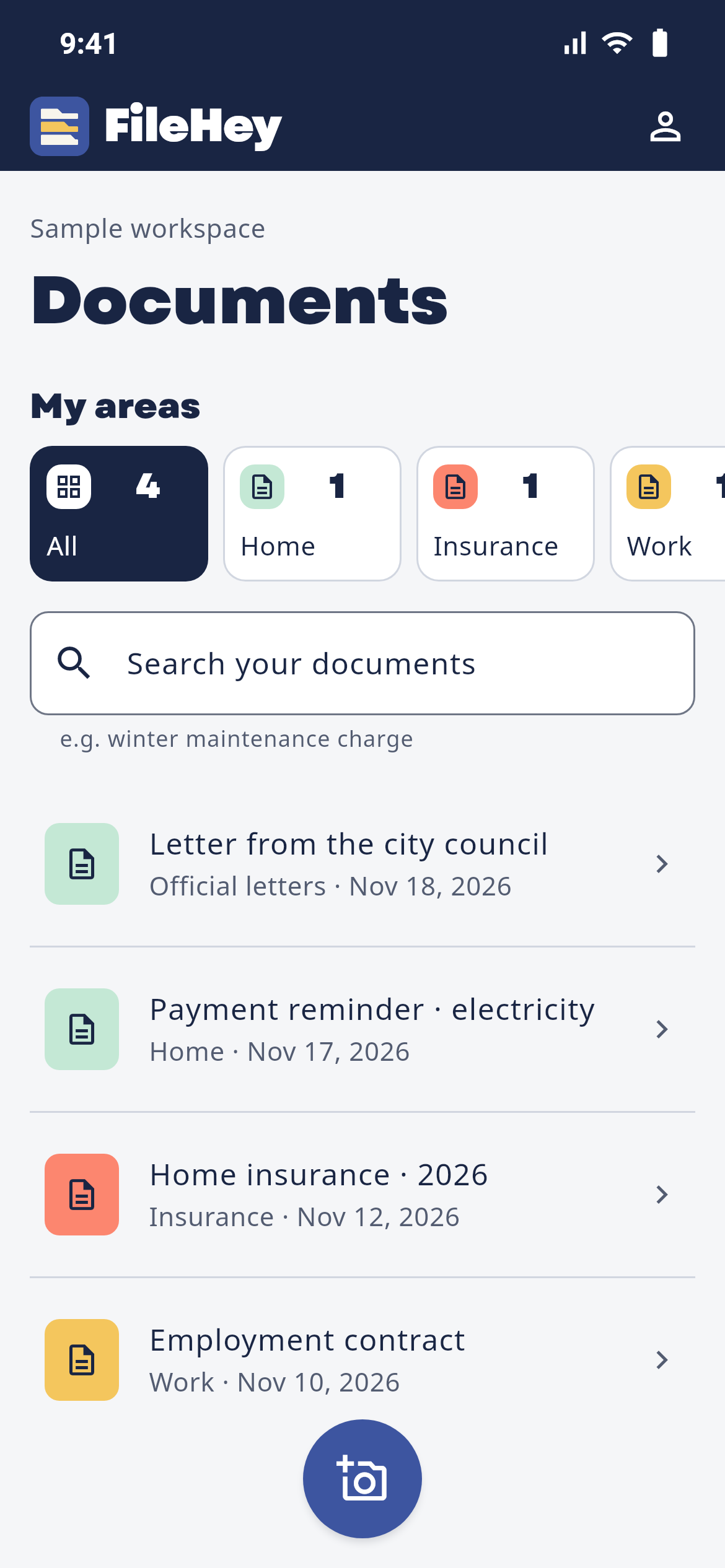
After that you see your list of documents.
If the code does not work
- The app says “The code is incorrect or has expired. Check it or request a new one.” Tap Send a new code and enter the new code.
- Did you make a typing mistake? Tap Change email address.
- The app says “Email codes are temporarily unavailable. Try again later.” Then the problem is with our email service. Wait a little and try again.
Signing out
Tap Account at the bottom and then Sign out. Your documents stay in the account.
With several devices
Sign in on every device with the same email address. You see the same storage and the same deadlines. The reminder comes from the phone on which you use FileHey.
Frequently asked questions
Do I need a password?
No. Every time, FileHey sends you a new code by email. You sign in with that code.
Do I have to register first?
No. If you enter an address that FileHey does not know yet, a new account is created when you sign in. Before the first time, the app shows you the terms and the notes on data protection, depending on the version of the app with a box to tick to confirm.
Can I try FileHey without creating an account?
Yes. Tap “Explore with sample documents”. You will then see sample documents. Your own files stay separate from them.
I am locked out. What can I do?
Request a new code. If nothing arrives, write to us using the contact form.


