

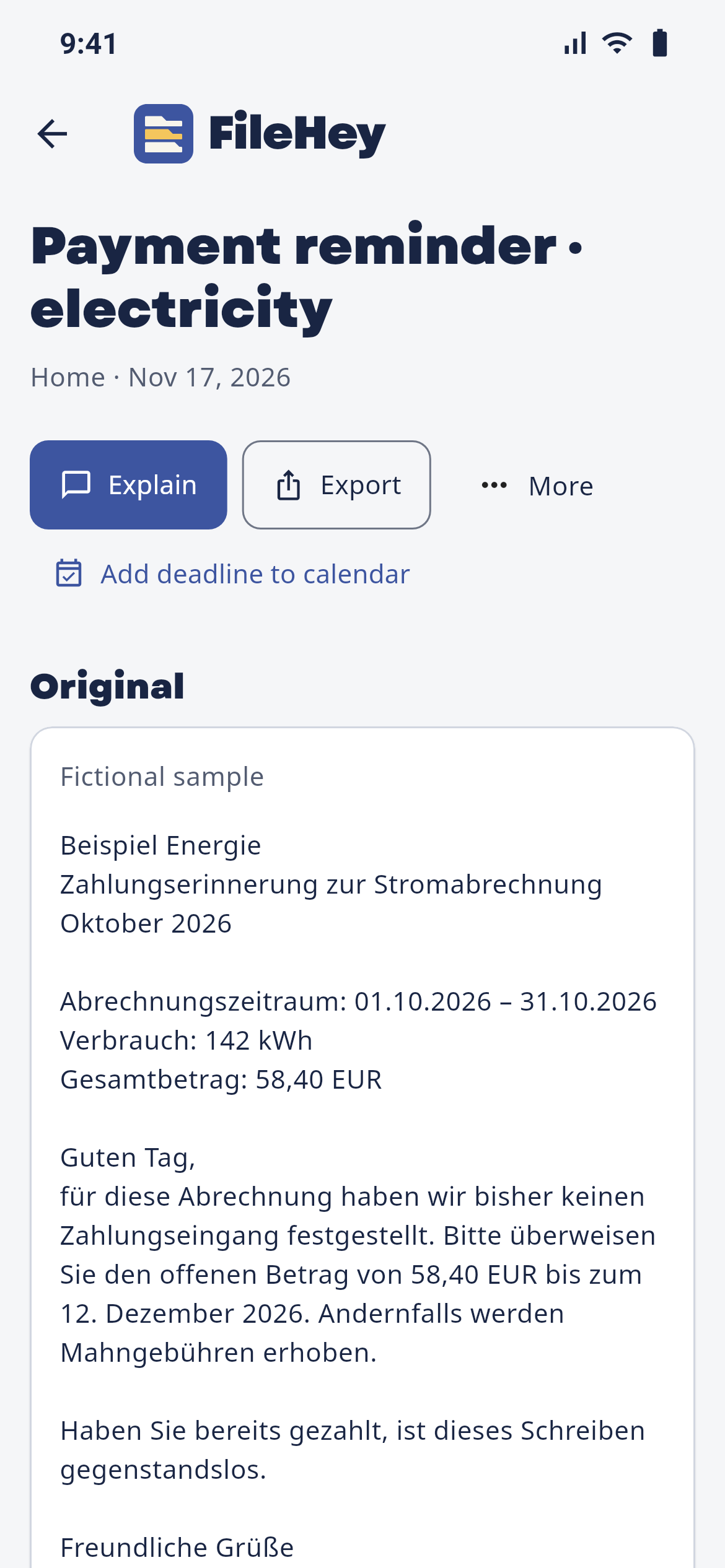
A single document
- Open the letter.
- Tap Export. The app opens the share menu of your device.
- Or tap Save a copy to a folder and then Choose a location for this copy. In the browser the button is called Download a copy. After that the app says “Saved”.
All documents
- Tap Account at the bottom.
- Tap Export all documents.
- The app packs everything into the file “FileHey-Export.zip” and opens the share menu. Save the file or send it to yourself.
With many or large documents this takes a while.
Afterwards
The export is a copy. Your documents stay in FileHey until you delete them. How to do that is explained in the instructions Searching, categories and folders (single documents) and Deleting your account (the whole account).
Frequently asked questions
What is in the ZIP file?
The “originals” folder contains your original files. There is also a file “metadata.json” with your email address, the folders, the documents including the recognised text, the explanations and the deadlines.
Are my deadlines in the export?
Yes. Your deadlines are in the export, with date, note and quote.
The app says my account is too large to export. What can I do?
Then it says: “Your account is too large to export in one step. Export documents one by one or contact support.” Export the documents one by one or write to us using the contact form.
Should I export before deleting my account?
Yes. Deleted documents cannot be brought back. Save what you want to keep beforehand.


